
Sign in
Open Settings → Account and sign in with the ClawLensXR membership that provides your download access.
End-user documentation
Set up the Android companion, connect your private OpenClaw Gateway and compatible Rokid glasses, then learn which controls live on the phone and which are available directly in the heads-up display.
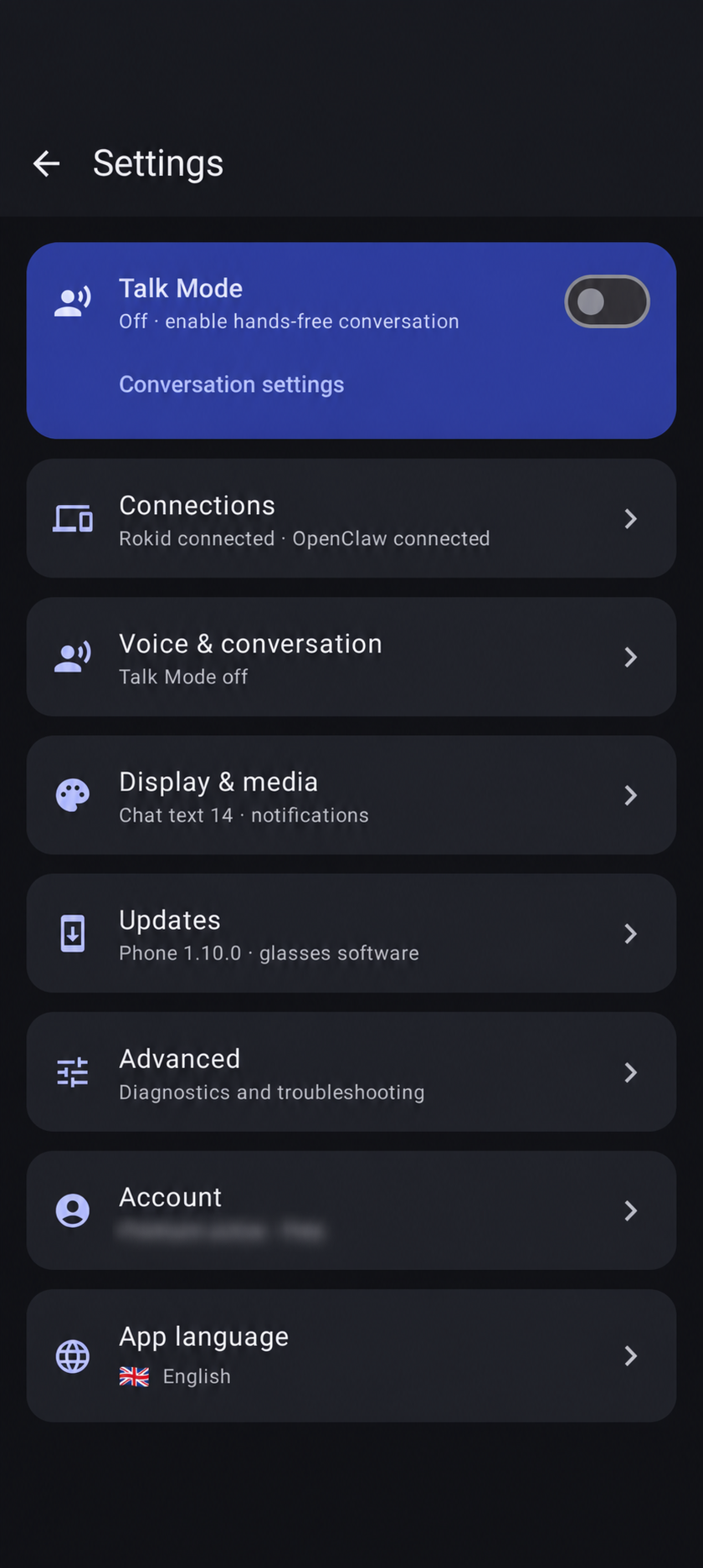
Updated with Build 159 screenshots on September 26, 2026 · private text is blurred
Screenshots currently show the English interface; localized screenshots will replace them later.
Quick start
The phone is the bridge between OpenClaw and the glasses. Complete setup on Android first; the HUD depends on the phone connection.
Open Settings → Account and sign in with the ClawLensXR membership that provides your download access.
Scan a trusted Gateway QR/setup code, or enter its private TLS host and port. Approve the new device when requested.
Choose Hi Rokid or Direct, authorize when requested, scan for the glasses, then connect them.
Open Settings → Updates and install or update the bundled glasses app. Keep both devices awake during transfer.
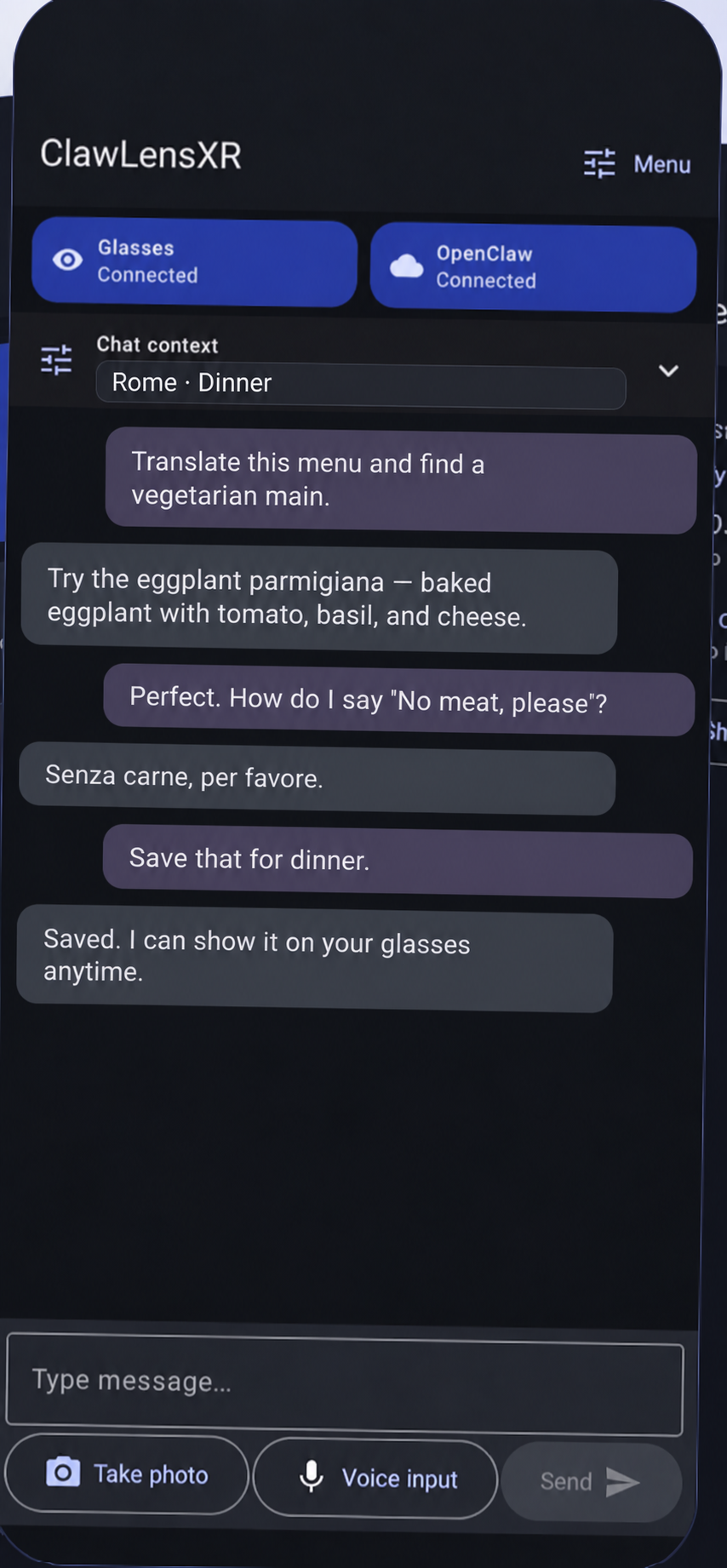
Choose a session, agent and model, then type, speak or attach a selected photo and follow the streamed reply.
Know where to look
The phone owns account access, Gateway and Rokid connections, language, voice providers, captions, notifications, software updates and recovery.
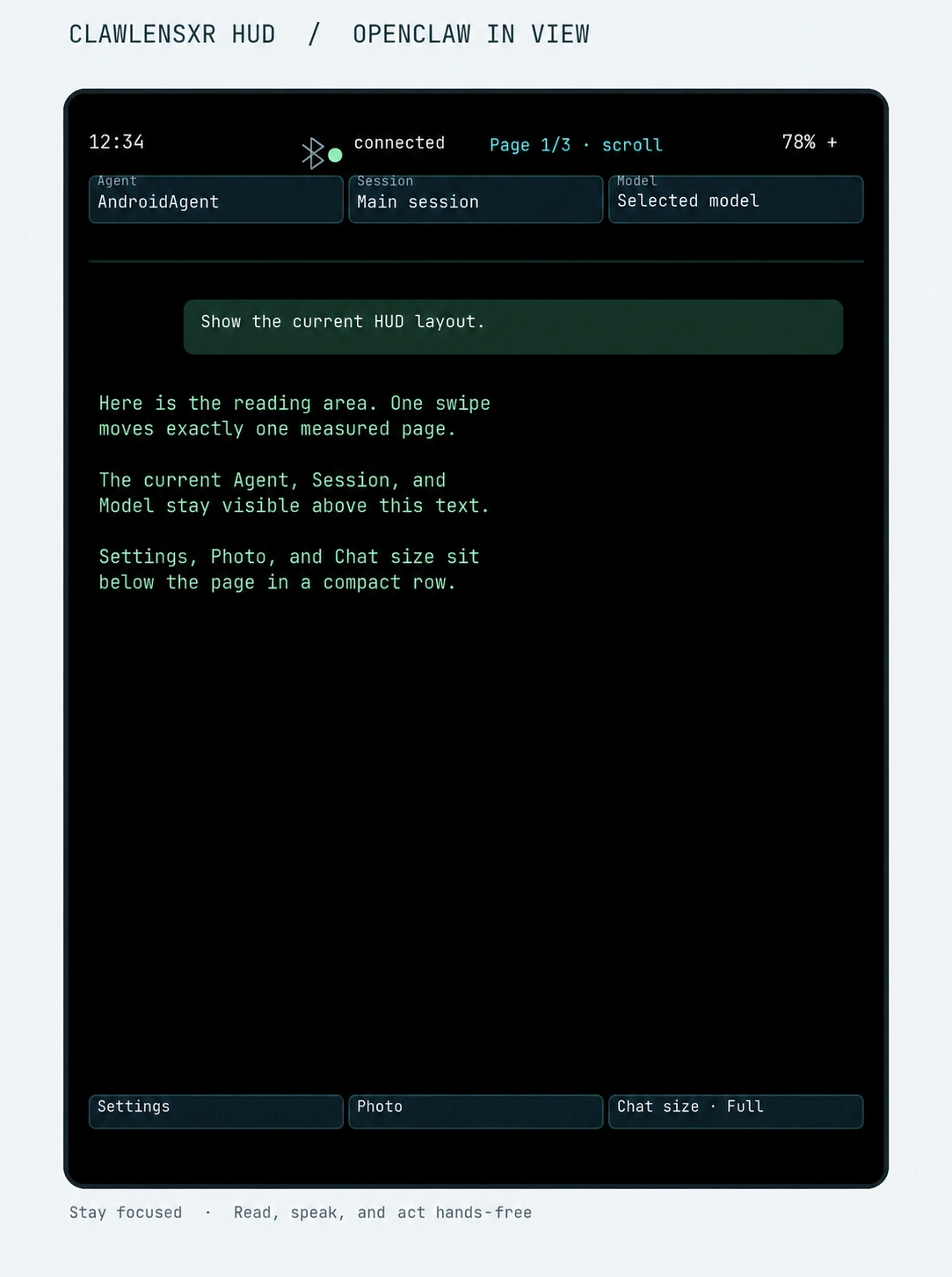
The HUD shows the active conversation and exposes fast touchpad controls for photos, catalogs, layout, speech and active runs.
Android companion
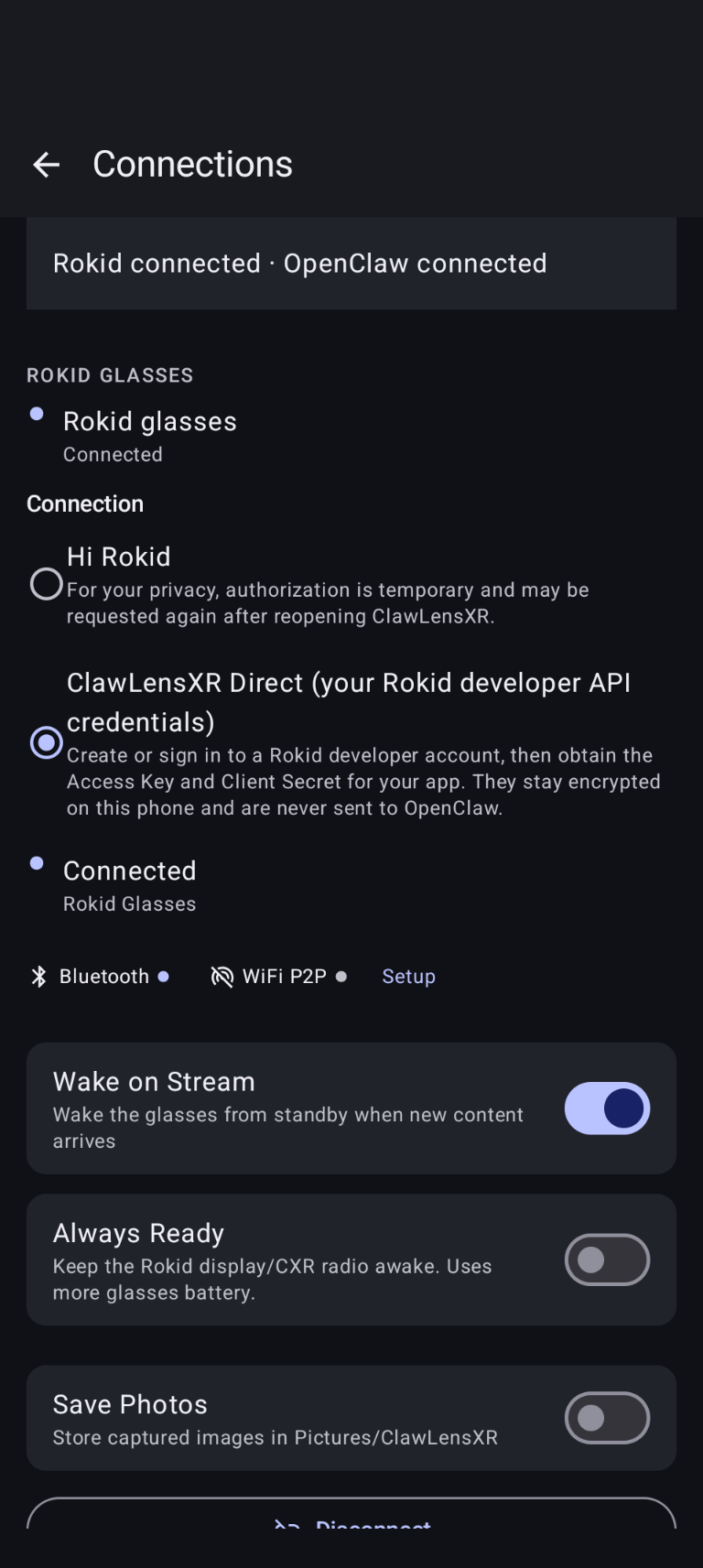
The redacted screenshots below were captured from the current app with both Rokid and OpenClaw connected.
Complete Android settings reference
Some controls appear only when supported, connected, or relevant. Advanced diagnostics may be hidden in production until evidence is available.
Membership controls the protected app downloads and entitlement used by the Android app.
| Sign in / saved account | Authenticate with your ClawLensXR username or email. Android Credential Manager can offer a saved account. |
|---|---|
| Refresh | Recheck membership status immediately. |
| Subscribe | Open the purchase page when the account has no active entitlement. |
| Account | Open the web member account for billing, cancellation and protected downloads. |
| Sign out | Remove the app session from this phone. It does not cancel a subscription. |
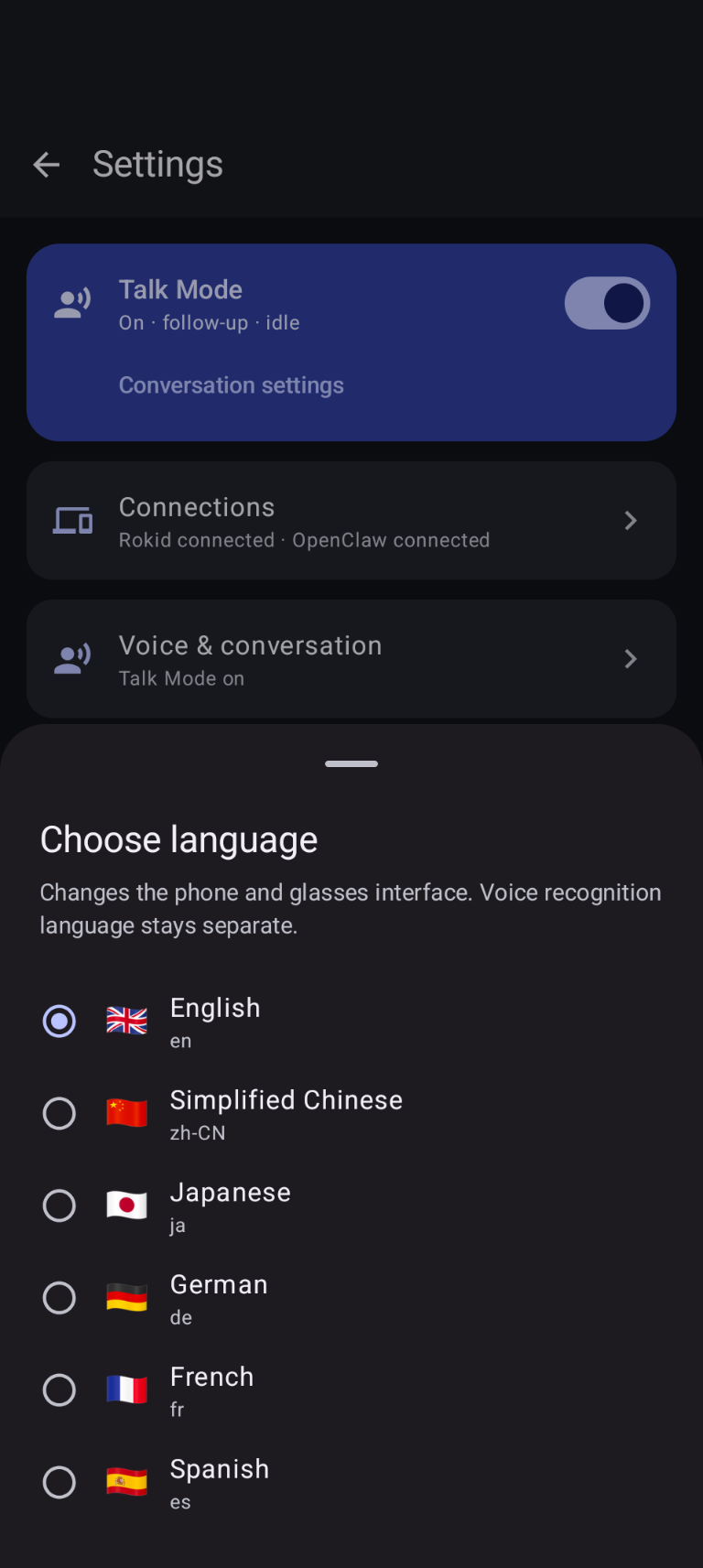
Choose English, Simplified Chinese, Japanese, German, French or Spanish. The phone sends this interface language to a compatible HUD.
| App language | Changes product UI labels on the phone and glasses. It does not change speech-recognition language, caption target language, or the language used with your assistant. |
|---|
This category contains separate OpenClaw Gateway and Rokid glasses sections.
| Scan QR / Paste setup code | Pair with a Gateway you trust without copying its shared token. Approve ClawLensXR in Gateway Devices when prompted. |
|---|---|
| Host / Port | Manual private Gateway endpoint. Use TLS and wss://; Tailscale is supported for private reachability. |
| Shared token | Legacy optional compatibility field. Keep it hidden and do not include it in support screenshots. |
| Hi Rokid | Public transport using the official app. Authorization is temporary and may be requested again for media or voice capture. |
| Direct | Uses your Rokid developer Access Key and 32-character Client Secret. Values stay encrypted on the phone and are not sent to OpenClaw. |
| Get Rokid API keys | Open the Rokid Developer Portal and create an account or sign in. In the developer console, create or select your app and obtain its Access Key and 32-character Client Secret. In ClawLensXR, open Settings → Connections → Rokid glasses, choose Direct, enter both values, save, then scan and connect. Keep the Client Secret private. If credentials are not shown, complete any developer verification requested by Rokid. Open the Rokid Developer Portal |
| Scan / Connect / Disconnect | Discover and manage the Bluetooth glasses connection. Cancel or retry a reconnect when offered. |
| Wake on Stream | Wake the HUD when new streamed or proactive content arrives during standby. |
| Always Ready | Keep the display/CXR radio awake for faster availability. This uses more glasses battery. |
| Wake glasses now | Send a manual wake probe without deleting pairing. |
| Recover ClawLensXR | Recover the glasses chat app while preserving staged text, photos, pairing and settings where supported. |
| Save Photos | Store an extra copy of captured images in Pictures/ClawLensXR. |
| Clear pairing | Remove saved pairing data. Use only when normal wake/retry recovery fails; you must pair again. |
| Restart glasses | Reboot the glasses after confirmation. The display and connection are unavailable during restart. |
| Switch to Hi Rokid | Disconnect ClawLensXR before opening the official Hi Rokid app. |
| Talk Mode | Enable or disable hands-free conversation from the overview, phone detail page, or HUD More menu. |
|---|---|
| Hey Rokid follow-up | Default mode: activate with the glasses wake word or AI key, listen once more after a spoken answer, then stop on silence. |
| Always listening | Continuously restart recognition while the selected audio source is available. Uses more microphone/battery time. |
| Recognition language | Select the language used for speech recognition. This is independent from App language. |
| Live captions | Show continuous short speech segments on the HUD. |
| Translate / Target language | Translate captions using the configured OpenAI key. Provider usage charges may apply; original text remains available on failure. |
| OpenAI Voice Recognition | Enable higher-accuracy OpenAI transcription and save/show/delete its API key. The app falls back to Android device recognition when unavailable. |
| Long dictation | Phone microphone only: tap once to record and again to transcribe, up to five minutes. Talk Mode and glasses audio stay on the realtime path. |
| Experimental local wake word | Optional local “HEY CLAWLENSXR” detector. It pauses when another audio feature owns the microphone and may affect battery life. |
| Voice responses | Enable spoken assistant replies, choose OpenAI or ElevenLabs, save the provider key, select a voice, stop/replay speech and adjust speed. |
| Chat text size | Adjust phone message and composer text from 14 to 26 sp; reset returns to 18 sp. Android system font scaling still applies. |
|---|---|
| Notification cards | Off by default. Relay selected Android notifications to the HUD. |
| Allowed package names | Comma-separated exact Android package IDs, for example com.google.android.gm. |
| Grant notification access | Open Android system settings and explicitly authorize ClawLensXR. Ongoing notifications, group summaries and ClawLensXR’s own notifications are ignored. |
| Version information | Shows the phone version/build/distribution track and bundled glasses app version/build. |
|---|---|
| Install or update Glasses App | Transfer the matching bundled HUD to connected glasses. Keep both devices awake and do not disconnect during upload/install. |
| Verify installed build | Confirm the connected HUD reports the expected matching build. |
| Cancel / Try again / Install again | Actions appear for supported installer states. Read the on-screen message before retrying. |
| Debug diagnostics | Record privacy-filtered input, audio and connection events for troubleshooting. It does not record speech, chat content or credentials. Turn it off after testing. |
|---|---|
| Evidence panels | When available, show the latest voice attempt, public glasses interruption or public audio-ingress summary for support. |
| Developer debug mode | Emulator/debug builds only. Replaces Bluetooth with loopback WebSocket transport and is not an end-user production setting. |
Rokid glasses HUD
This diagram follows the current six-item HUD menu. The phone remains responsible for credentials, provider setup and software management.
Voice camera commands
Command availability follows the active speech path and language. Photo commands can send visual context; video remains local to the glasses.
“Take a photo”Capture and stage a photo for the next message.
“Take and send a photo”Capture and send immediately to the active session.
“Read this” / “Translate this” / “Identify this”Capture a selected photo and ask the active assistant for the requested visual task.
“Start video recording” / “Stop video recording”Control native glasses recording. Clips stay in glasses storage and can be checked in Hi Rokid.
Troubleshooting
Check the private route, TLS certificate, wss:// host/port and Tailscale status. Approve the pending ClawLensXR device in the Gateway.
Keep the Bluetooth bond. Use Wake glasses now or the recovery prompt; if instructed, press the glasses button three times until the blue LED advertises again.
Confirm microphone permission and recognition language. Stop competing caption, Talk Mode, dictation, video or TTS activity, then retry.
Check provider/key/voice on the phone and ensure Voice is enabled in the HUD More menu. Use Replay only when the latest response is available.
Wait for capture completion, keep fewer than four staged photos, confirm the active session and reauthorize Hi Rokid media access if requested.
Check Hi Rokid and the glasses’ native media store. ClawLensXR does not import or upload video, so it will not appear as a chat attachment.
Blur Gateway hosts, account details, session/agent names, chat messages, device identifiers and any credential field—even if a key looks masked.